Your Screenshot Game Is Weak (Level It Up With These Tricks)
Stop sending raw, uncropped screenshots that show 47 browser tabs. Here's how to take, edit, and share screenshots that actually communicate.
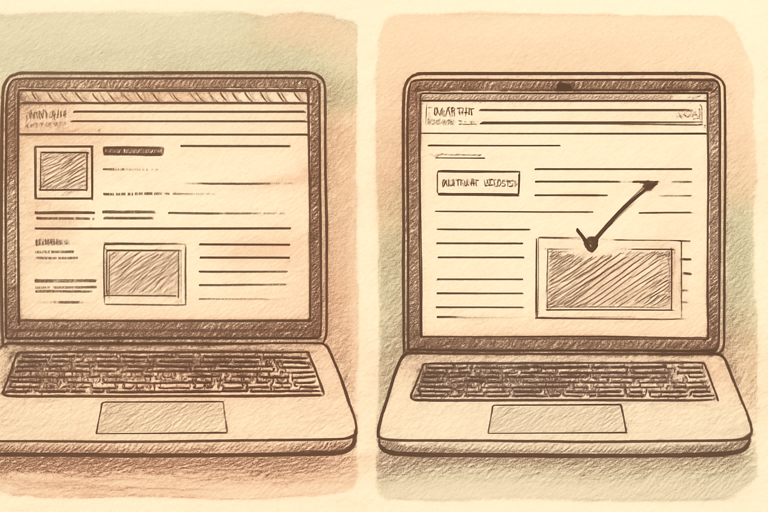
We’ve all received that screenshot. The one that’s a full-screen capture of someone’s entire desktop, with 34 Chrome tabs visible (three of which are suspiciously unnamed), their battery at 3%, seventeen notifications, and somewhere in the middle is the tiny thing they actually wanted to show you.
Your screenshot game needs work. Here’s how.
Rule 1: Crop Before You Send
The number one screenshot crime is sending the full screen when you mean to show one button. Every operating system has a selection screenshot tool:
- Mac: Cmd+Shift+4, then drag to select
- Windows: Win+Shift+S
- Chrome: DevTools > Cmd+Shift+P > “screenshot” for element-level captures
Crop to exactly what matters. Nothing more.
Rule 2: Redact Sensitive Stuff
Before you share that screenshot of a bug, check what else is visible. Email addresses, API keys, customer data, your DoorDash order. A screenshot redaction tool lets you blur or block out sensitive areas before sharing.
And strip the metadata. Screenshots contain EXIF data including your device info, location, and timestamp. Run them through an EXIF stripper before posting publicly.
Rule 3: Size It Right for the Platform
Dropping a 4K screenshot into a Slack message is like bringing a billboard to a conversation. Different platforms want different sizes. A social image cropper gives you one-click presets for every platform.
Rule 4: Code Screenshots Should Be Pretty
If you’re sharing code, please don’t screenshot your IDE with its 2005-era theme. Use a code screenshot generator that creates beautiful, syntax-highlighted images with proper padding and backgrounds. Your code will look like it belongs in a conference talk, not a police report.
Rule 5: Annotate, Don’t Just Send
A screenshot without context is a puzzle. Add arrows, circles, or text to point out what you’re showing. Most built-in screenshot tools have basic annotation. Use them. “See attached screenshot” with zero markup is the visual equivalent of “per my previous email.”
Rule 6: Use the Right Format
- PNG for screenshots with text (lossless, text stays sharp)
- JPEG for photos (smaller file, slight quality loss)
- WebP for web content (best compression, modern browsers handle it)
Sending a 8MB PNG of a photo is wasteful. Sending a JPEG of a screenshot with text makes the text blurry. Match the format to the content.
The Pro Move
For bug reports: screenshot the bug, annotate it, crop it, redact sensitive data, strip EXIF metadata, and attach it with a one-line description. Your developers will send you a thank-you card. Possibly flowers.
Good communication is a superpower, and screenshots are communication. Treat them accordingly.